
What this online ruler can—and cannot—do
Online-Ruler.Onl displays a screen scale in centimetres, millimetres, or inches. It is useful for quick, non-critical checks when a physical ruler is unavailable. Because browsers do not reliably report physical display dimensions, the initial scale is an estimate rather than a real-size measurement.
Why calibration matters
- Set browser zoom to 100% and keep operating-system display scaling unchanged.
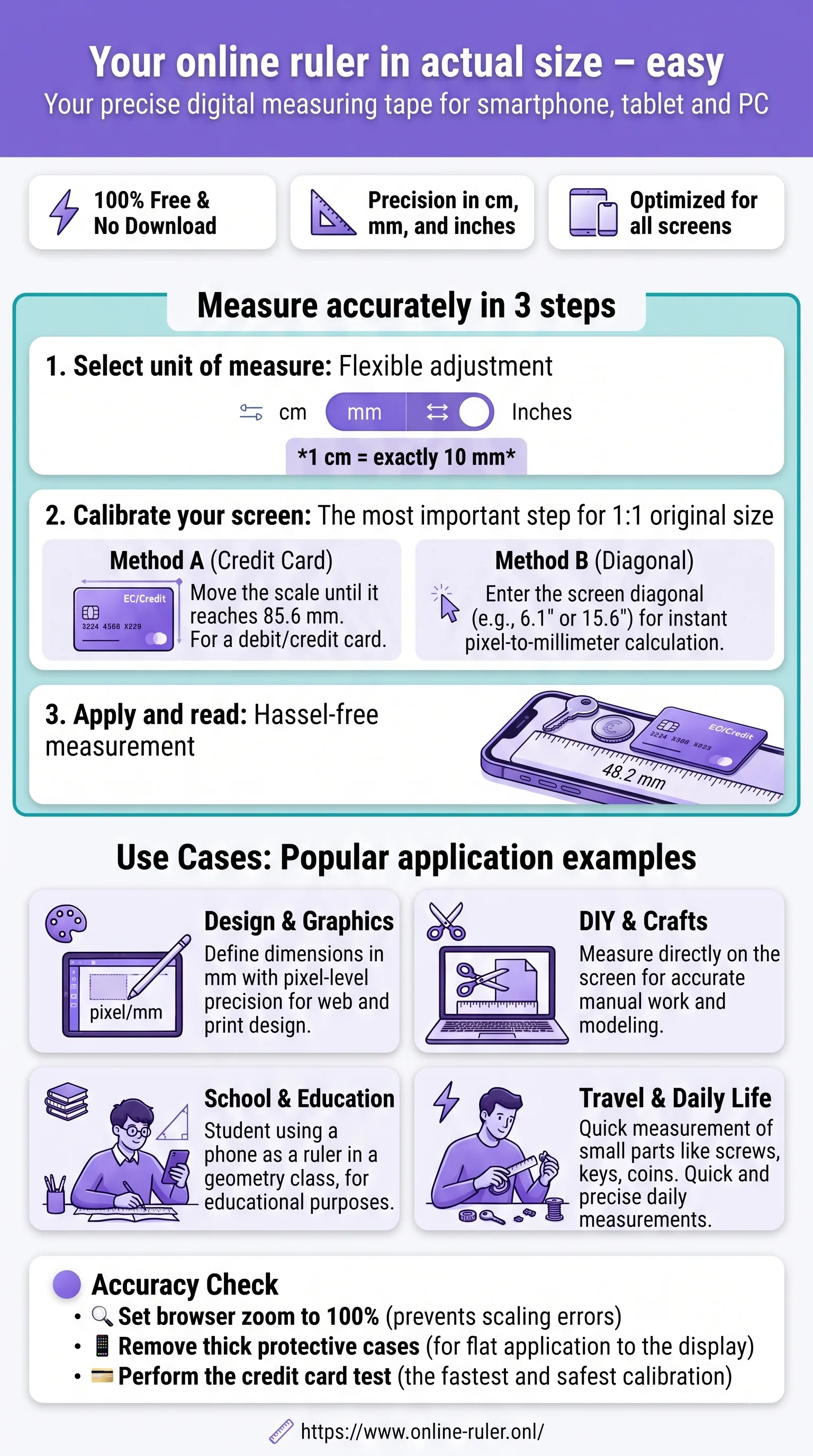
- Match the 85.60 mm reference line to a standard ID-1 bank card, or enter the display diagonal supplied by its manufacturer.
- Confirm the calibration, choose a unit, and align the object with the zero mark.
- Recalibrate when you change displays, browser zoom, or display scaling.
Expected limitations
Screen geometry, browser zoom, device-pixel handling, protective cases, and viewing angle can introduce error. Check the scale against a trusted physical reference whenever the result matters. Do not use this utility for medical, safety, construction, manufacturing-tolerance, or other regulated measurements.
Learn the measurement basics
Read the ruler-marking guide, follow the step-by-step measuring guide, or use the printable ruler with its 100 mm scale check.
Use the on-screen scale for quick measurements in centimeters, millimeters, and inches after calibrating it for the current display.
The initial scale is an estimate because browsers cannot reliably detect physical display size. Match a known reference before relying on it.
More information about virtual rulers
Graphic and web design
Check approximate dimensions of visual elements after calibrating the display.
Craft measurements
Make quick, non-critical craft checks when a physical ruler is unavailable.
Educational use
Demonstrate metric and inch markings interactively in class.
Quick checks without a physical tool
Take a quick screen-based measurement, then verify important results with a physical tool.
How to Use the Online Ruler
Quick measuring checklist
- Calibrate the scale with a standard card or the display diagonal.
- Select centimetres, millimetres, or inches.
- Choose the ruler orientation needed for the object.
- Align the object with the zero mark without pressing hard on the display.
- Keep browser zoom at 100% and recalibrate after display-setting changes.
- Verify consequential measurements with a suitable physical tool.
Why Use This Screen Ruler
Useful features and limits
- The tool clearly marks estimated and confirmed calibration states.
- It is designed for modern phones, tablets, laptops, and desktops.
- The controls use direct labels and a simple calibration workflow.
- Digital ruler with multiple units (cm, mm, inches)
- Clear calibrated and uncalibrated states, with measurement limitations shown
Frequently Asked Questions
Common Physical Ruler Sizes
| Typical format | Metric length | Approximate inches |
|---|---|---|
| Pocket ruler | 15 cm | 6 in |
| School/desk ruler | 30 cm | 12 in |
| Half-metre rule | 50 cm | 19.69 in |
| Metre stick | 100 cm | 39.37 in |
How to Use the Online Ruler Correctly
Follow these steps to reduce screen-scaling errors and understand when a physical measuring tool is still required.
1. Choose the unit of measurement
Select the unit you need: millimeters (mm), centimeters (cm), or inches (in). You can change it at any time from the ruler menu.
2. Calibrate the screen (recommended method)
Before using the scale for a physical object, complete one of these calibration methods:
Option A — Standard card calibration (recommended):
- Place a credit or debit card on the screen.
- Adjust the calibration control until the on-screen card length matches 85.6 mm (standard size).
- Confirm the match. The page will then mark the ruler as calibrated.
Option B — Screen diagonal calibration:
- If you know your screen diagonal in inches, enter it in the calibration field.
- The site will automatically calculate the pixel-to-mm ratio.
3. Prepare the device and the object to measure
- Place the device (phone/tablet/PC) on a flat, stable surface.
- Make sure the screen is clean and free of reflections that make reading difficult.
- Place the object to measure as parallel as possible to the on-screen ruler.
4. Measure correctly
- Place the edge of the object at the 0 point of the virtual ruler.
- Read the measurement in the selected unit.
- If the object is longer than the on-screen ruler, note the visible measurement and move the object to measure the rest.
5. Tips for greater precision
- Verify that the browser zoom is at 100% (no zoom).
- Avoid measuring through thick cases or protectors that alter the object's position.
- Recalibrate if you change devices or after a browser update.
- For critical measurements (engineering, construction), use certified physical instruments.
6. Common problems and quick solutions
Incorrect measurements: Recalibrate with the standard card.
The ruler looks distorted: Make sure there is no zoom on the page or in accessibility settings.
Doesn't work in my browser: Update your browser or try Chrome/Firefox/Safari in their latest version.
Start Measuring Now!
After calibration, your screen can help with quick, non-critical measurements without downloading an app. Verify important results with a suitable physical instrument.

⚡ Fast, easy, and free
Calibrate for the current display and keep browser zoom at 100%. Recalibrate after changing display, zoom, or operating-system scaling.
✓ Ready to start
- Match the reference to a standard card and select "Confirm card match," or enter the display diagonal and select "Use diagonal."
- Keep browser zoom at 100% and align the object with the zero mark.
- Verify important readings with a suitable physical instrument.
🎯 Why wait?
Use the calibrated scale for quick, non-critical checks on a modern phone, tablet, or computer. Results remain dependent on the current display and setup.